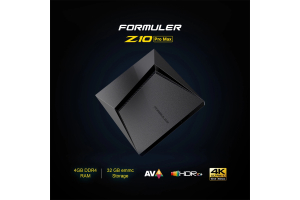
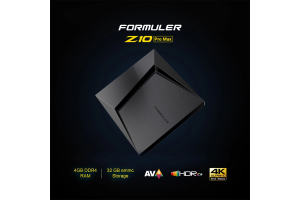
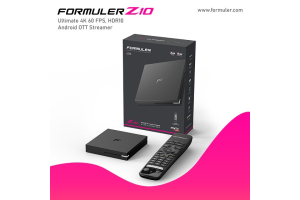
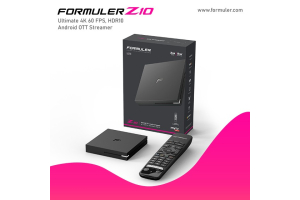
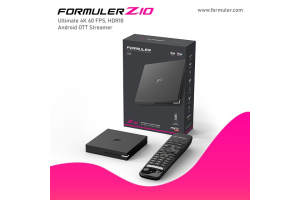
Formuler Z10 Pro Initial Setup and Installation Guide 2023
-
Unboxing: Start by unboxing the Formuler Z10 Pro and ensuring that all the necessary components are included in the package. These typically include the Formuler Z10 Pro device, an HDMI cable, a power adapter, a remote control, and batteries for the remote.
- Connection: Connect one end of the HDMI cable to the HDMI port on the back of the Formuler Z10 Pro and the other end to an available HDMI input on your television or display. Make sure to use a high-quality HDMI cable for optimal performance.
- Power: Connect the power adapter to the Formuler Z10 Pro and plug it into a power outlet. The device will power on automatically.
- Remote Control Setup: Insert the batteries into the remote control provided with the Formuler Z10 Pro. The remote control should pair with the device automatically. If not, follow the on-screen instructions to complete the pairing process.
- Language and Time Zone Selection: Once the device has booted up, you will be prompted to select the language and time zone. Navigate through the options using the arrow keys on the remote control and press the OK or Enter button to confirm your selection.
- Network Connection: The next step is to connect the Formuler Z10 Pro to your home network. You can choose between a wired Ethernet connection or a wireless Wi-Fi connection. To connect via Ethernet, simply plug in an Ethernet cable into the Ethernet port on the back of the device. For a wireless connection, go to the settings menu and select the Wi-Fi option. Follow the on-screen instructions to connect to your Wi-Fi network and enter the required credentials.
- Software Update: After connecting to the network, the Formuler Z10 Pro may check for any available software updates. If an update is found, it is recommended to proceed with the update to ensure that you have the latest features and bug fixes.
- Account Setup: Depending on your usage and preferences, you may need to set up various accounts such as IPTV services, streaming platforms, or app stores. Follow the on-screen instructions or refer to the user manual to set up the specific accounts you require.
-
Customization: Once the initial setup is complete, you can personalize the settings and customize the Formuler Z10 Pro according to your preferences. This includes adjusting display settings, audio settings, app layouts, and other options available in the device's settings menu.
You have successfully completed the initial setup and installation of your Formuler Z10 Pro. Enjoy exploring the features and capabilities of your new device, whether it's streaming your favorite content, accessing IPTV services, or enjoying various apps and games. If you need further assistance or have any questions, refer to the user manual or reach out to Formuler's customer support.


Related Products
- 0 Comment(s)
Recent Posts